How to Prevent Screenshots, Printing, and Downloading of PDFs in Web Browsers?

In today’s digital world, content protection is crucial for businesses and content creators. Whether you’re distributing eBooks, reports, or academic papers, you may want to prevent unauthorized users from downloading, printing, or taking screenshots of your valuable PDF content in a web browser. Unfortunately, it’s challenging to completely block these actions as they often depend on the user’s browser and device settings. However, several strategies can help you discourage or limit these actions.

How to Prevent Screenshots, Printing, and Downloading of PDFs in Web Browsers?

In this article, we’ll explore various methods and best practices to minimize the risk of unauthorized screenshots, printing, and downloads of your PDFs in a web browser.

1. Use a PDF Viewer with Restrictions

One of the most effective ways to prevent unwanted actions on your PDF file is by using a web-based PDF viewer that allows you to set permissions. Many PDF libraries and services, such as PDF.js or proprietary PDF viewers, provide options to disable printing, downloading, or copying of content.

These viewers allow you to control certain features of the PDF file, ensuring that users can only view the content without being able to save or print it. However, it’s important to note that these restrictions are not foolproof and may not work across all browsers or devices.

2. Add Watermarks to Your PDFs

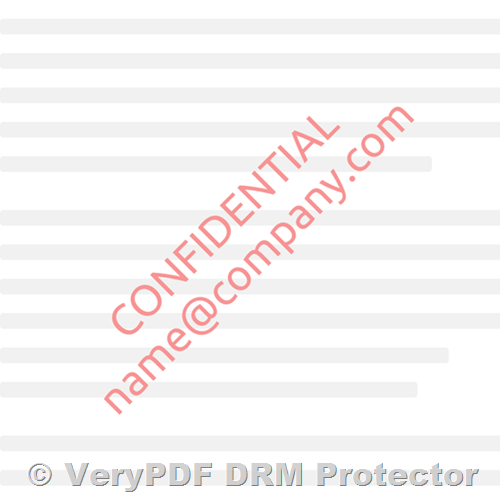
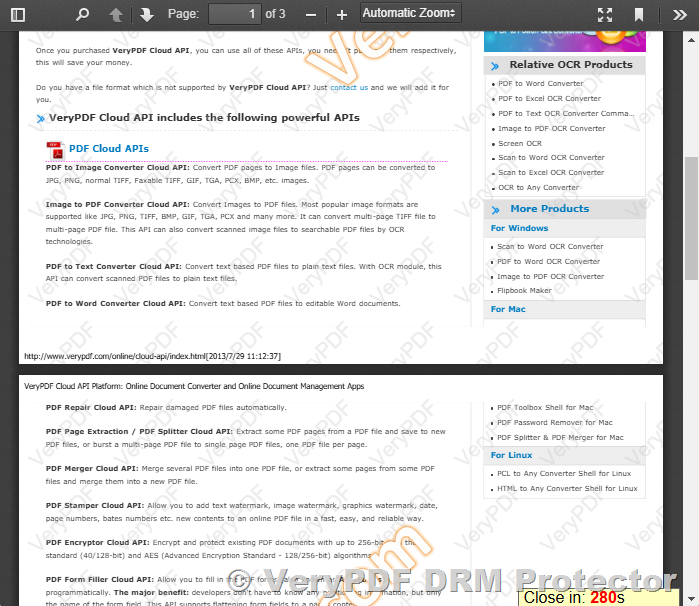
Watermarking is a simple yet effective deterrent for unauthorized sharing or redistribution of your PDFs. While it won’t prevent screenshots or downloads directly, adding visible or invisible watermarks can make it more difficult for users to share your content without attribution.

Consider embedding personalized or dynamic watermarks with user-specific information, such as the user’s email or IP address. This can discourage users from sharing the content and helps trace the source of any unauthorized copies.

3. Convert PDF to HTML Instead of Using a PDF

Converting your PDF content into HTML and displaying it on a web page offers more control over how the content is displayed. HTML allows you to take advantage of modern web security features like encryption, custom scripts, and content overlays, making it harder for users to capture the content in its entirety.

This approach can be especially useful for online articles, eBooks, or reports, as HTML is much easier to protect with content security measures compared to a static PDF. However, users could still capture screenshots of the web page, so this method should be combined with other security measures.

4. Implement JavaScript Overlays

Using JavaScript overlays can obscure content or disable right-click options on your PDF page. By preventing right-clicking, you can discourage users from attempting to save or print your content directly. Additionally, JavaScript overlays can be used to disable features like text selection or right-click context menus, making it harder for users to interact with your content.

However, keep in mind that this is not a foolproof solution. Users can still bypass these restrictions using browser developer tools or screen capture programs.

5. Disable Right-Click Functionality

Another simple approach to prevent users from copying or downloading your PDF is by disabling right-click functionality on your page. Using JavaScript, you can block the right-click menu, preventing users from easily saving images or accessing the “Print” option.

document.addEventListener('contextmenu', event => event.preventDefault());

While this method can deter casual users, it’s not a strong security measure. Savvy users can still capture content using keyboard shortcuts or third-party screen capture tools.

6. Use a Content Security Policy (CSP)

A Content Security Policy (CSP) is a security feature that allows you to control which resources can be loaded on your website. Although CSP won’t directly prevent screenshots or downloads, it can reduce the risk of content theft by blocking certain types of malicious activities.

For example, you can restrict embedding of your PDF content on unauthorized websites, ensuring that only your domain can display the document. While this doesn’t stop screenshots, it can reduce the risk of cross-site content theft.

7. Secure PDF Hosting

If you’re concerned about the unauthorized distribution of your PDFs, consider using a secure document hosting service. Many PDF hosting platforms offer features like password protection, encrypted access, and time-limited download links.

For example, some services allow you to set expiry dates on the access links, ensuring that users can only view the document for a limited time. This can be particularly useful for eBook stores or subscription-based services.

8. Educate Your Users

While it may not be a technical solution, user education is an essential aspect of content protection. Inform your users about the importance of respecting content copyright and not sharing or distributing PDF files without permission. By promoting a culture of respect for digital content, you can reduce the likelihood of unauthorized use, even if some users may still attempt to take screenshots or download the document.

Limitations of Current Solutions

While there are various methods to discourage unauthorized screenshots, printing, and downloading of your PDF, it’s essential to understand their limitations:

Technical Limitations:

There is no foolproof way to prevent users from taking screenshots or printing PDFs. Dedicated screen capture programs or third-party tools can bypass many of the protections mentioned above. Additionally, users can often find ways to disable JavaScript overlays or use developer tools to extract content.

User Experience:

Overly restrictive measures can frustrate legitimate users and impact their experience. Too many restrictions may lead to users abandoning your content or seeking workarounds. Striking a balance between protection and usability is crucial.

Additional Solutions to Consider

While the above methods can help limit unauthorized actions, you may also consider the following options:

Password Protect Your PDF

Password-protecting your PDF and disabling printing can deter unauthorized access. However, some PDF viewers may ignore these restrictions, so it may not be entirely reliable.

Convert Your PDF to Flash or Images

Another approach is to convert your PDF into a Flash file or an image and wrap it in an iFrame. By adding a transparent image over the iFrame, you can make it harder to right-click or take screenshots. However, this method won’t prevent advanced screen capture programs or browser developer tools.

Use a DRM Solution

A Digital Rights Management (DRM) solution is one of the most robust ways to control access to your PDF content and prevent unauthorized use. DRM solutions offer encryption, access controls, and even screenshot prevention. However, DRM can be complex to implement and may limit the accessibility of your content.

Consider Online Flipbooks

If you’re distributing interactive content like eBooks or brochures, you may want to consider using online flipbooks. Flipbooks are HTML-based publications that can be protected from printing and downloading using specialized tools like Flipping Book.

Conclusion

Preventing screenshots, printing, and downloading of PDFs in web browsers is a complex challenge, but implementing a combination of strategies can help mitigate risks and discourage unauthorized access. Using PDF viewers with restrictions, watermarking, and secure hosting are some of the most effective methods.

Remember that no solution is completely foolproof, and it’s essential to balance security with user experience. By educating users, using DRM solutions, and integrating these protective measures into your web app, you can significantly reduce the risk of unauthorized use while still offering a seamless experience for legitimate users.

For more information on protecting your PDFs and ensuring secure access, consider exploring VeryPDF DRM Protector, which offers advanced DRM solutions to secure your digital content.

Preventing Screenshots of PDFs: A Solution for eBook Stores with VeryPDF DRM Protector

In today’s digital world, content protection is more important than ever, especially for businesses that rely on the sale and distribution of digital products like eBooks, reports, and academic papers. One of the major concerns for publishers and content creators is preventing unauthorized copying and distribution of their PDF files. While methods like password protection, watermarking, and disabling printing or editing are commonly used, many content creators face an even more daunting challenge: preventing screenshots.

Preventing Screenshots of PDFs: A Solution for eBook Stores with VeryPDF DRM Protector

The Challenge of Preventing Screenshots

When it comes to digital content, preventing unauthorized access and distribution is relatively straightforward—password protection, encryption, and DRM tools can limit who can view or print a document. But what about users who simply take screenshots? Whether it’s someone trying to save a copy of an eBook or a competitor stealing your work, screenshots represent a serious issue. Since screenshots are often taken by pressing a key combination or using an external tool, it can be difficult to block them entirely using traditional content protection methods.

This challenge is particularly pressing for eBook stores, where content is typically distributed in PDF format. PDF files are a popular choice for eBook distribution due to their consistency across devices and platforms. However, the fact that PDFs are so easily opened, viewed, and even printed makes them vulnerable to unauthorized copying. Even if you disable the ability to print or copy text, someone could still take a screenshot and save the content. This raises the question: Can we prevent screenshots of PDFs?

Can a PDF Go Completely Black When a Screenshot is Taken?

At first glance, it might seem like an impossible task to stop someone from taking a screenshot of a PDF document. After all, once the document is rendered on a screen, it’s essentially exposed to the viewer, and there’s little control over what happens next. However, there are ways to make taking a screenshot less appealing or even impractical.

One solution that has been suggested is for a PDF to go completely black when a screenshot is detected. This would essentially render any attempt to capture the content useless, as the screen would display a blank or black image rather than the actual content of the document. In theory, this could be accomplished through a combination of encryption, DRM, and detection software that monitors for screen capture attempts.

For instance, if the software detects that a screenshot tool is in use or if the document is being recorded by screen capture software, it could immediately trigger a response, such as displaying a black screen or preventing any content from being rendered to the screen. However, this approach is not commonly implemented in standard PDF viewers, and achieving it programmatically requires advanced DRM (Digital Rights Management) solutions.

Can It Be Done Programmatically?

Yes, it is possible to implement such a solution programmatically. However, it requires specialized DRM software that is capable of monitoring and controlling how PDF files are displayed and interacted with on a user’s device. This type of solution typically involves embedding security features into the PDF that interact with the operating system’s screen capture tools.

To achieve this, a software solution would need to:

  • Monitor for Screenshot Tools: The application would need to detect when a screen capture tool is in use. This could be done by monitoring system processes or detecting key combinations commonly used for screenshots (e.g., pressing “PrtSc” on Windows or “Command + Shift + 4” on macOS).
  • Blackout the Screen: Upon detecting that a screenshot tool is activated, the software could replace the content on the screen with a black or blank screen to prevent the user from capturing any meaningful information.
  • Implement Secure Viewing Mechanisms: The PDF viewer itself would need to be customized to work with the DRM software. This might involve creating a specialized PDF reader that includes the screenshot prevention functionality or using a third-party solution that integrates with existing PDF viewers.

VeryPDF DRM Protector: The Solution for Preventing Screenshots

If you’re an eBook store owner or a content creator concerned about the security of your PDFs, VeryPDF DRM Protector offers a powerful and flexible solution to safeguard your digital content. VeryPDF DRM Protector is designed to protect PDF files from unauthorized actions like copying, printing, editing, and yes, even screenshots.

Here’s how VeryPDF DRM Protector can help you secure your PDFs and prevent screenshots:

  • Prevent Screenshots and Screen Recording: VeryPDF DRM Protector can help prevent screenshots by making the PDF content invisible or blacked out when screen capture tools are detected. This means that users attempting to take a screenshot of the document will not see anything but a blank screen, rendering the screenshot useless.
  • Granular Permissions Control: You can set specific permissions for your PDF documents, such as preventing saving, printing, copying, or extracting text. By setting restrictions on what users can do with your PDFs, you can ensure that they only have access to the content in the way you intend.
  • Time-Based and Device-Based Expiry: VeryPDF DRM Protector allows you to set time-based expiry dates on your PDFs, ensuring that your content is only accessible for a limited period. This feature is especially useful for eBook stores that offer time-limited access to promotional content or subscription-based services.
  • Watermarking and Branding: To further deter unauthorized copying or sharing, VeryPDF DRM Protector allows you to add watermarks or branding to your PDFs. Watermarks can include your company’s logo, copyright information, or personalized user identifiers, making it clear that the document is copyrighted.
  • Secure PDF Distribution: With VeryPDF DRM Protector, you can control how your PDFs are distributed. For example, you can restrict access to specific users or groups, ensuring that only authorized users can open the document. This level of control is essential when protecting sensitive or premium content.
  • Custom Development for eBook Stores: If you have specific requirements for your eBook store, VeryPDF offers custom development services to tailor their DRM Protector tool to your exact needs. Whether you need additional security features, integrations with your existing platform, or customized reporting tools, VeryPDF’s development team can help.

Implementing VeryPDF DRM Protector in Your React Web App

If you’re building a web app using React for your eBook store, you can easily integrate VeryPDF DRM Protector into your workflow. While the core functionality of DRM protection happens at the PDF file level, the integration into your web application involves using VeryPDF’s APIs and software to manage the document access and security features directly from your React-based interface.

By integrating the DRM solution into your React app, you can:

  • Set up user authentication to ensure that only authorized users have access to your protected PDFs.
  • Control download and viewing permissions dynamically based on user roles or subscription plans.
  • Monitor access to ensure compliance with your content protection policies.

Conclusion

Preventing screenshots of PDF files is a complex challenge, but with VeryPDF DRM Protector, you can significantly reduce the risk of unauthorized capture and distribution of your content. This powerful DRM solution allows you to secure your PDFs, prevent unauthorized printing, copying, and screenshots, and ensure that your content is only accessed by the right people at the right time. Whether you are running an eBook store, selling reports, or distributing other types of digital content, integrating VeryPDF DRM Protector into your workflow can provide peace of mind and protect your valuable intellectual property.

For more information on how VeryPDF DRM Protector can help secure your PDFs, visit the VeryPDF website and explore the possibilities for protecting your digital content.

PDF Expiry: How to Make a PDF Expire Using VeryPDF DRM Protector Online Application?

PDF documents are a popular format for sharing important information, and sometimes, it’s essential to ensure that these documents don’t remain accessible indefinitely. Whether you want to limit document access to a specific timeframe or restrict sharing after a particular number of views or prints, setting an expiry on a PDF can be a powerful solution. In this article, we will walk you through how to make a PDF expire using the VeryPDF DRM Protector Online Application.

In this blog post, we’ll cover:

Can you make a PDF expire?
PDF expiration date scripts.
Can you set an expiry date for a PDF for free online?
How effective PDF expiration works?
How to put an expiry date on a PDF using DRM?
How to make a PDF self-destruct after a number of days?
How to put an expiry date on a PDF for a specific user?
Make a PDF expire after printing.
Make a PDF Expire after a number of opens.
Expired PDF files and PDF expiry messages.
Key takeaways for effective PDF expiry.
The number of days from first use.
How many times the document has been opened.
How many times the user has printed the document.

How PDF Expiration Works?

Making a PDF document expire relies on Digital Rights Management (DRM) encryption. DRM enables the creator of a document to control how and when it can be accessed, preventing unauthorized sharing and ensuring that sensitive information doesn’t stay available longer than necessary.

The VeryPDF DRM Protector allows you to set expiration parameters based on several factors:

  • Expiry Date: Set a specific date after which the PDF cannot be opened.
  • Number of Days from First Use: Set a timeframe after which the document expires, starting from when the user first opens it.
  • Number of Opens: Limit the number of times the document can be accessed before it expires.
  • Number of Prints: Prevent the document from being printed once it reaches a certain print limit.

Once a PDF expires, users attempting to open it will be shown an expiration message, and the document will no longer be accessible.

Steps to Put an Expiry Date on a PDF Using VeryPDF DRM Protector

To set an expiry date on a PDF document using VeryPDF DRM Protector, follow these simple steps:

  1. Upload Your PDF Document: Start by uploading your PDF file to the VeryPDF DRM Protector online application.
  2. Choose Expiry Conditions: Once uploaded, select the Expiry Settings for your document. You can set one or more of the following conditions:
    • Expiry Date: Choose a calendar date when the PDF will no longer be accessible.
    • Days from First Use: Set the number of days after the first opening of the document before it expires.
    • Opens Limit: Limit the number of times a user can open the document.
    • Print Limit: Restrict the number of prints allowed for the document.

    PDF Expiry: How to Make a PDF Expire Using VeryPDF DRM Protector Online Application?

  3. Apply Encryption and DRM Settings: After configuring the expiry conditions, the DRM Protector will encrypt the PDF file with your selected settings. This ensures that only authorized users can access the document until it expires.
  4. Distribute the Document: After the PDF is encrypted, it’s ready for distribution. You can now share the document with users, knowing that the expiry settings are enforced.
  5. Expiration Notifications: When the document expires, the user will receive a custom expiration message that informs them the file is no longer accessible.

How to Make a PDF Self-Destruct After a Number of Days

Another feature of VeryPDF DRM Protector is the ability to make PDFs self-destruct after a specified number of days. This feature is ideal for time-sensitive documents or confidential information that needs to disappear after a set period. Simply specify the number of days from first use, and the PDF will be automatically deleted from the user’s device once it reaches the expiry limit.

Make a PDF Expire for a Specific User

You can also make PDFs expire based on user-specific conditions. This allows you to control access for different individuals or groups of users. Whether it’s limiting access to VIP clients or giving employees access to certain documents for a limited time, this feature adds an extra layer of flexibility to your document distribution.

Make a PDF Expire After Printing or a Set Number of Opens

VeryPDF DRM Protector enables you to set expiration rules based on actions like printing or opening the document. If you want to restrict users from printing your document more than once, or if you want the document to expire after a certain number of opens, you can apply these conditions easily. This ensures that your document’s security is maintained, even if it has been downloaded or shared.

Expired PDF Files and Expiry Messages

Once a PDF expires, the user will not be able to open the document. Instead, they will see a customizable message informing them that the document has expired. The message can include instructions on how to request access to an updated version, or simply inform them that the document is no longer valid.

Key Takeaways for Effective PDF Expiry

  • VeryPDF DRM Protector provides an efficient and secure way to make your PDFs expire based on multiple criteria (date, usage, prints).
  • You can control document access on a per-user or document-wide basis, ensuring flexibility in your security protocols.
  • The online tool is easy to use, enabling publishers, organizations, and businesses to enforce document expiry without complicated processes.
  • Custom expiration messages keep users informed and maintain a professional appearance, even when documents are no longer accessible.

By using VeryPDF DRM Protector, you can ensure that your PDFs are secure and that they expire when needed, protecting your content and maintaining control over your documents. Whether you need to limit access to sensitive information or ensure that outdated versions of documents are no longer available, this powerful tool can handle your PDF expiry needs efficiently.

Comparing VeryPDF DRM Protector vs. FileOpen RightsManager/RightServer vs. LockLizard "Safeguard"

When it comes to digital rights management (DRM) solutions for securing documents, businesses and content creators have a variety of options to consider. Among the most prominent DRM solutions are VeryPDF DRM Protector, FileOpen RightsManager/RightServer, and LockLizard Safeguard. Each of these tools offers different approaches to securing files, but their strategies vary when it comes to file compatibility, deployment, and control over access.

In this comparison, we explore the key features, strengths, and weaknesses of these DRM tools to help you determine which solution best suits your needs.

Comparing VeryPDF DRM Protector vs. FileOpen RightsManager/RightServer vs. LockLizard "Safeguard"


VeryPDF DRM Protector

Overview:
VeryPDF DRM Protector offers a flexible solution for protecting PDF documents and other file types through encryption, password protection, and advanced rights management features. Unlike FileOpen RightsManager, VeryPDF DRM Protector does not rely on Adobe Reader or third-party viewing software, instead providing its own proprietary technology to secure and manage documents. Additionally, VeryPDF DRM Protector offers HTML5 URL-based online access for encrypted PDF files, which eliminates the need for any software installation and makes it even easier to use.

Key Features:

  • Encryption and Password Protection: Encrypts files with AES encryption, requiring a password to access.
  • User Permissions Control: Allows the publisher to restrict printing, copying, and editing of the document.
  • Expiry and Watermarking: Publishers can set expiration dates and dynamically insert watermarks to discourage unauthorized sharing.
  • Cross-Platform Compatibility: Works across different platforms and doesn’t require proprietary viewers like Adobe Reader.
  • HTML5 URL Access: Provides an HTML5 URL to access encrypted PDF files online without the need to install additional software.

Pros:

  • No reliance on Adobe Reader or other third-party viewing applications, offering greater flexibility for end users.
  • Simple to implement and use, with minimal setup required.
  • Works with common PDF readers, which means users don’t need to install specialized software.
  • HTML5 URL access provides an even simpler and more user-friendly solution for online access to encrypted files.

Cons:

  • Lacks the deep integration features available in solutions like FileOpen RightsManager or LockLizard Safeguard.
  • Might not be as suitable for high-security scenarios where strict access control and detailed auditing are required.

FileOpen RightsManager/RightServer

Overview:
FileOpen RightsManager/RightServer is a solution designed for secure document publishing and sharing. Unlike VeryPDF DRM Protector and LockLizard Safeguard, FileOpen retains the document’s original format (such as PDF or DOCX), allowing users to view the document in standard applications like Adobe Reader or Microsoft Word. This eliminates the need for proprietary software installation and allows for a smooth user experience.

Key Features:

  • File Encryption in Native Formats: Protects documents by encrypting them while retaining the original file format (e.g., PDF, DOCX), so they can be viewed using native applications.
  • Granular Permissions Control: Allows the publisher to define permissions for viewing, printing, copying, and editing documents.
  • Cloud Integration: Supports sharing documents through cloud-based storage solutions, making collaboration easier while maintaining security.
  • Adobe Integration: As an Adobe RIKLA Security Partner, FileOpen integrates seamlessly with Adobe Reader and Acrobat, which benefits from the robust security framework that Adobe provides.

Pros:

  • No need for users to download and install proprietary software, making it easier for the end user.
  • Seamless integration with Adobe Acrobat and Microsoft Office, providing a familiar environment for document viewing.
  • Scalable and cloud-ready, making it a good option for enterprise-level document protection.

Cons:

  • Still relies on Adobe Reader and third-party viewers, which may not be suitable for all environments.
  • Some users may find the integration with Adobe and other third-party tools complex if they are not already using them.

LockLizard “Safeguard”

Overview:
LockLizard Safeguard operates in a fundamentally different way from both VeryPDF DRM Protector and FileOpen RightsManager. It uses a proprietary file format (VPDF) to encrypt documents, which can only be opened in the LockLizard viewer. This approach is not reliant on Adobe Reader or any other third-party viewer, creating a more controlled and secure environment for document access.

Key Features:

  • Proprietary File Format: Encrypted documents are converted into the proprietary VPDF format, which can only be opened in the LockLizard viewer.
  • Offline Access: Users can access the encrypted documents offline, using LockLizard’s viewer to read the files.
  • Device Control: LockLizard provides strong control over which devices can access the protected documents, ensuring that only authorized devices can view them.
  • Detailed Tracking and Auditing: Provides detailed reports on document access and usage, including who viewed the document and when, and whether any actions (such as printing or copying) were performed.

Pros:

  • Provides tight control over document distribution and access, ideal for high-security environments.
  • Strong encryption and extensive tracking capabilities make it an excellent choice for sensitive documents.
  • Offline access is available, offering flexibility when an internet connection is not available.

Cons:

  • Requires users to install proprietary viewing software, which can complicate deployment for organizations.
  • The use of a closed file format limits flexibility, as users cannot open documents in standard PDF viewers or other familiar applications.

Key Differences

  1. File Format Compatibility:
    • VeryPDF DRM Protector and LockLizard Safeguard both use proprietary encryption technologies and do not depend on Adobe Reader or any other third-party viewer.
    • FileOpen RightsManager retains the original file format (such as PDF or DOCX) and works with popular viewers like Adobe Reader, providing a familiar user experience.
  2. Deployment and User Experience:
      • VeryPDF DRM Protector offers both a desktop version that
        requires proprietary software to view encrypted PDF files and an online version
        that allows access to encrypted PDF files through a simple URL. The online
        version requires no additional software installation and is fully
        cross-platform, compatible with Windows, Mac, Linux, iOS, Android, and other
        operating systems. This allows users to view encrypted PDFs directly on their
        systems without the need for specialized software.
      • LockLizard Safeguard requires proprietary viewing software
        to open encrypted documents, which may be less convenient for end users compared
        to FileOpen RightsManager, which works directly with common
        applications like Adobe Reader.
      • FileOpen RightsManager provides a seamless user experience
        for those already using Adobe products, with minimal additional installation
        requirements.

  3. Security Features:
    • LockLizard Safeguard offers the most control over document access with its proprietary file format and strict device control, making it the best option for high-security environments.
    • VeryPDF DRM Protector provides encryption and rights management but is more flexible in terms of document viewing, without requiring proprietary software.
    • FileOpen RightsManager integrates with trusted third-party tools like Adobe Reader, but it may not offer as strict a level of control as LockLizard Safeguard in terms of document distribution.
  4. Audit and Tracking:
    • LockLizard Safeguard excels in tracking and auditing document usage, offering detailed reports on how documents are accessed and used.
    • FileOpen RightsManager provides some level of tracking but may not be as comprehensive as LockLizard’s solution.
    • VeryPDF DRM Protector offers basic user permissions and encryption, but detailed tracking features may be more limited.

Conclusion

Each of these DRM solutions offers distinct advantages depending on your needs:

  • VeryPDF DRM Protector is best for those looking for a flexible, simple solution to protect documents without needing proprietary software, and it offers HTML5 URL access for easy online access to encrypted files.
  • FileOpen RightsManager excels in environments where Adobe Reader and other standard viewers are used and provides seamless integration with those tools.
  • LockLizard Safeguard is ideal for high-security scenarios where tight control over document access and detailed tracking are critical.

Ultimately, the choice will depend on the specific requirements of your organization or project, such as the level of security needed, the types of documents being protected, and the user experience you wish to provide.

Protecting PDF Training Courses with VeryPDF DRM Protector: Prevent Theft, Piracy & Unauthorized Sharing

The rise of online education has made PDF training courses a popular medium for learning. However, the convenience of digital distribution also brings significant risks such as theft, piracy, and unauthorized sharing of content. Protecting your intellectual property is crucial to maintaining the integrity and profitability of your training courses.

Protecting PDF Training Courses with VeryPDF DRM Protector: Prevent Theft, Piracy & Unauthorized Sharing

Here’s how VeryPDF DRM Protector can help safeguard your PDF training courses:

1. Encryption for Maximum Security

One of the most effective ways to protect your content is through encryption. VeryPDF DRM Protector uses advanced encryption to secure PDFs, making them accessible only to authorized users with the proper decryption key. This ensures that only legitimate users can access the material.

2. Disabling Printing and Downloading

Preventing users from printing or downloading the content is a key feature of VeryPDF DRM Protector. Although traditional PDF tools may offer similar features, they’re often easily bypassed by tech-savvy users. VeryPDF DRM Protector ensures that such restrictions are enforced rigorously, minimizing the risk of unauthorized distribution.

3. Secure Hosting with VeryPDF DRM Protector

Hosting your PDF files on an insecure platform is a potential vulnerability. VeryPDF DRM Protector offers secure cloud hosting with advanced security measures, including robust encryption and access controls. This ensures that even if someone attempts to access the content, they won’t be able to download or share it without authorization.

4. Screenshot Prevention

One of the unique features of VeryPDF DRM Protector is the ability to prevent screenshots of your documents. This feature is especially useful when sharing confidential training materials, as it ensures that no unauthorized captures can be made while the document is being viewed.

5. One-Time Password (OTP) Authentication

For maximum protection, VeryPDF DRM Protector supports the use of OTPs (One-Time Passwords) for accessing your PDFs. This method requires users to authenticate via email or other means before viewing the content, adding an extra layer of security to prevent unauthorized access.

6. Disable Document Forwarding

Another important feature of VeryPDF DRM Protector is the ability to disable forwarding. Once enabled, this ensures that your PDF files cannot be shared with others, significantly reducing the risk of piracy and unauthorized distribution.

Conclusion

Protecting PDF training courses from theft and piracy is essential for creators who wish to preserve the integrity of their content and intellectual property. VeryPDF DRM Protector offers a comprehensive suite of security features, including encryption, screenshot prevention, OTP authentication, and more. By leveraging these features, businesses and content creators can safeguard their valuable training materials and ensure that their profits remain protected in the digital world.

VeryPDF DRM Protector provides an easy, efficient, and affordable solution to protect PDF training courses from unauthorized access and distribution, making it the ideal tool for anyone serious about securing their digital content.